Varis Pro utilizes MySQL database server. While we do not support installation of this product (you will need to visit them at their site http://www.mysql.com) we do offer a limited walkthrough of the configuration set up. There is an easier way, but it is not guaranteed to work, although this SHOULD cover most installation problems. This is provided as a general help and is in no way supposed to replace actual support from MySQL... We are not and never will be an appropriate technical support medium for MySQL. This setup walkthrough is for Windows 2000 and Windows XP; Windows9x and ME need to contact MadHatter on the forums for further support. (9x and ME users can follow setup steps up to #27, this is where 2k/XP and 9x-ME differ, step 12 9x-ME users will type command instead of cmd to get a DOS window)
- Double click on the Varis Pro setup.exe.
- Follow the install instructions for Varis Pro.
- When It is completed, open Windows Explorer.
- Go to \Program Files\Varis Pro\MySQL\ and double click on the SETUP.EXE.
- Follow MySQL’s installation instructions.
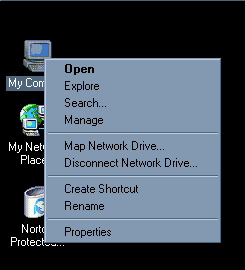
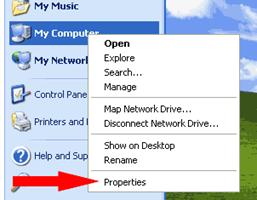
- On your Desktop right mouse click on your "My Computer" Icon
- Select "Properties"
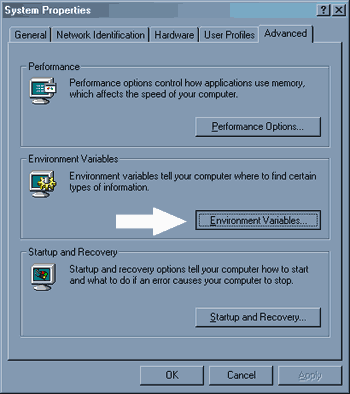
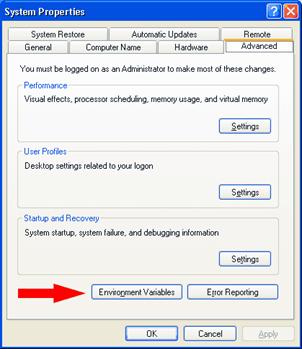
- Go to your "Advanced" tab and click on the "Environment Variables" button
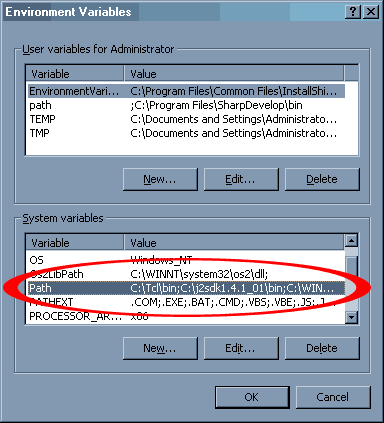
- Look for the variable "Path" in the "System variables" section:
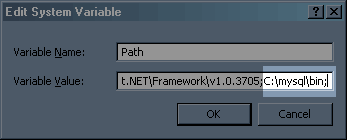
- Select it like it is above and press the "Edit" button, and add X:\mysql\bin; Where "X" is the actual letter of the drive you installed MySQL on. In this case it's the C drive. Remember to include the";" semicolon after the c:\mysql\bin, and make sure there is one before it too.
- Press Ok/Apply on everything until it all goes away.
- Open a DOS window by clicking on your start button and selecting “run” and type in cmd and press enter.
- Type winmysqladmin.exe in the dos window and press enter.
- When the program opens up (it may minimize to the task bar, in this case right click on the stop light icon and select "show me") it should prompt you to enter a user name and password, enter root as the users name and choose a password.
- Exit winmysqladmin.exe.
- Go to your DOS window, type mysql –u root –p and press enter.
- Enter the password you entered in the winmysqladmin.exe user setup and press return.
- If you are denied access at this point retry step 16 without the –p and continue.
- In Windows Explorer go back to \Program Files\Varis Pro and open the file popk.sql with wordpad.exe.
- In wordpad, go to “edit” and choose select all. Go back to “edit” and choose “copy.”
- By this point you should have a mysql > prompt in the DOS window.
- Right click in the DOS window (xp users need to choose “paste” from the popup menu options) and press return after everything is pasted into the DOS window.
- If you get error messages here, you have done something wrong return to step 16 and try the command mysql with nothing after it and try again.
- If you still have problems you need to contact us on the forums for user specific help. If you haven’t experienced any errors then ignore this and continue.
- Type show databases; exactly as it is written (including the semicolon) and press return. You should see 3 databases: mysql, popk, and test. If popk is not present you need to contact us on our forums.
- If you see popk then type \q in the DOS window and press return.
- You may now safely exit the DOS window.
- Go to your desktop or programs menu in your start button and click on the Varis Pro icon to start the application.
- You should have successfully set the database up and Varis Pro will have already been installed correctly and should now work